Normal map editor · 2D sprites
Normal maps for 2D sprites that keep their shape.
It treats the silhouette as the one thing known for certain about the surface, solves for the normals that fit it, and lets you correct the result by painting what the picture cannot say.
- Platform
- Windows. macOS and Linux builds are planned, and the tool itself is already cross-platform.
- Engines
- Unity · Godot 4 · Unreal Engine 5 · OpenGL · DirectX
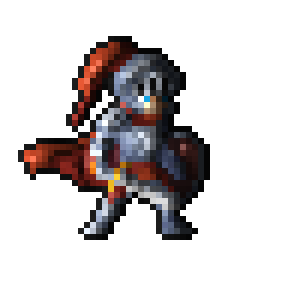
A real sprite and its exported normal map, shaded here per pixel — one light, plain Lambert, nothing added. Move your pointer across it to take the light.
 Orbit
OrbitOne solve, one light, taken all the way round twice. Nothing is redrawn between frames — only the direction the light comes from changes.
The difference
Volume a light can travel across
Brightness-based tools give flat plates with embossed edges — the familiar sticker look. This is the solved map instead: the body rounds, the arm reads as being in front, and the light moves over a surface rather than across a sticker.
What it is good at
6 thingsShading does not corrupt it
Line detection uses colour rather than brightness, so a dark painted shadow is not mistaken for an inked fold — and nothing is differentiated, so nothing gets blurred.
Pixel art stays sharp
Output is solved at the sprite's own resolution. A 32×32 sprite exports as a 32×32 normal map with its edges intact, not a soft approximation of one.
A live lit preview
Drag lights over the artwork and watch the surface respond. Art, normal, lit and split views, so you can judge the map against the thing it is for.
Whole animations at once
Load every frame as a batch. Settings are shared so the frames cannot disagree, hints stay per frame, and one command exports the lot.
Photoshop and Aseprite layers as masks
Import a PSD or an .aseprite file and map its layers straight onto hint layers, so a mask matches your artwork exactly instead of being traced with a brush. Re-read the file after editing it.
A real batch tool
Save the settings you dialled in, hand them to tnmap, and apply them to two hundred sprites. Ships as a standalone executable with nothing to install.
Why it works
Why drawn art breaks the usual approach
Almost every normal map generator reads your artwork’s brightness as height. On a photograph of stone that is a reasonable guess. On drawn art it is not, because the shading is a decision the artist made about how the character should look — not a measurement of the surface. A brightness-based tool cannot tell those apart, so it carves your paint choices into the geometry and never consults the shape at all.
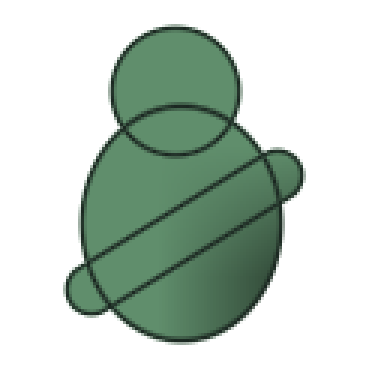 The artworkFlat colour, drawn ink lines, and a soft shadow wash painted down the lower right.
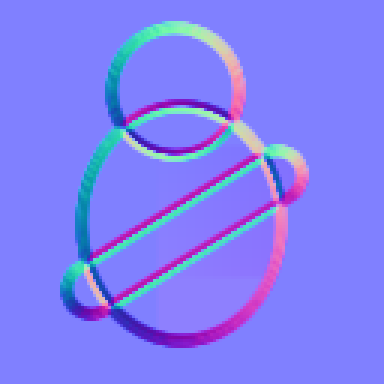 Brightness as heightEvery ink line becomes a ridge. The interior stays flat, because flat colour has no gradient to read.
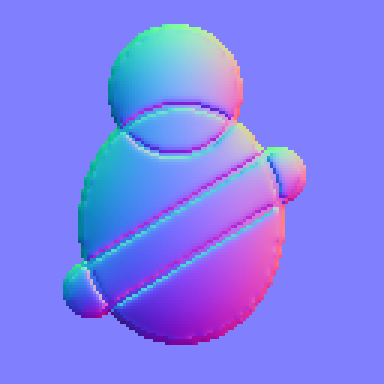 Solved from the silhouetteThe body rounds, the head rounds, and the lines read as folds rather than as pipes.
Hints
When the picture is ambiguous, you say so
An arm crossing a body looks, to any algorithm, exactly like a fold in one continuous surface. Rather than guessing, the tool lets you paint the missing fact: fill the arm with In front and its edge stops folding the surface behind it.
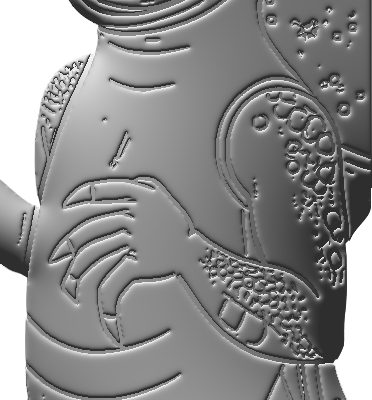 Without the hintThe arm's edge creases the body, so the limb and the torso merge into one surface.
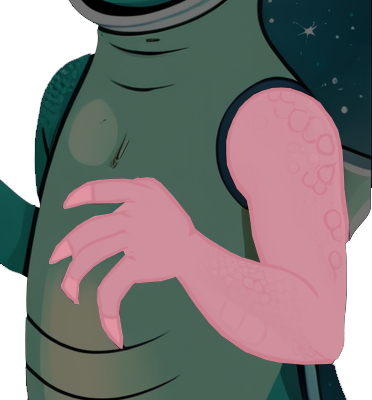 What you paintThe arm, filled with In front. One region; nothing else about the artwork changes.
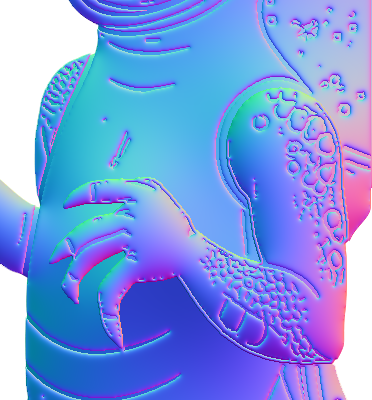 The map you getThe arm rounds as a limb, and the body carries on behind it rather than folding at its edge.
Photoshop & Aseprite
Or paint the hints in the tool you already use
A brush in a normal map editor will never be the brush you have spent years with, and a hint that has to match your artwork exactly is exactly the case where that shows. So it does not have to be painted here: open your .psd or .aseprite file and point each layer at the hint it means.
Selections, masks, the magic wand, a shape you already had — whatever produced the layer produced the hint. Edit the file, come back, and one command re-reads it and keeps the mapping.
A layer’s own shape is usually the hint, and naming it for the hint it feeds fills the dialog in for you. Anything left unassigned is simply artwork — see Importing artwork.
Compatibility
Exports your engine will accept
The disagreement is one bit — whether green counts up or down — and getting it wrong produces no error, just artwork where every bump reads as a dent. So you pick an engine rather than a coordinate system, and the import settings that a PNG cannot carry travel with the file.
Unity
Y+Set Texture Type to Normal Map and leave Flip Green Channel off.
Godot 4
Y+Leave Normal Map Invert Y off. Godot discards the blue channel, and exports stay valid without it.
Unreal Engine 5
Y-Set Texture Group to WorldNormalMap. The flip is already in the file, so leave Flip Green Channel off.
OpenGL
Y+Raw Y+, matching Blender and most offline renderers.
DirectX
Y-Raw Y-, matching 3ds Max and Source 2.
Not sure which your pipeline wants? Export a calibration target once and compare it against the reference on the Exporting page.
Support
Three ways to get an answer
The documentation covers every function in the application, and it is worth trying first — most surprises are a setting doing exactly what it says.
Documentation
Start here. Every tool, every setting, the batch tool, and a troubleshooting page for results that look wrong.
support@goathollowgames.com. A sprite that reproduces the problem, or the project file, gets a much faster answer than a description.
Steam community
Discussions open with the store page. Best place for workflow questions and for asking after a feature.